# Auto-List Your Blog-Posts With GitHub Actions & Workflows
Hi fellow tech writer 👋, today, we shall automatically add recent blog posts to our GitHub special ```ReadMe``` file in just 5 minutes!
#### 🔸 GitHub Workflow
To achieve this, we’ll create a GitHub workflow, which is an automated process to execute jobs. Each job in a workflow will have one or more actions.

A GitHub Action is a set of executable commands combined into steps and as you will notice, I have two existing Actions in my GitHub that updates my [```Daily Dot Dev Card```](https://app.daily.dev/AfroBoy)
Before you continue, I suppose you have already created a special repo under the ```README.md``` file in your GitHub.
#### 🔸 What is this Special Repo?
GitHub has many special repositories. For instance, you can create a repository that matches your username, add a README file to it, and all the information in that file will be visible on your GitHub profile.
This special repo if set to public can be your simple and amazing landing-page to your GitHub profile.
For example, [mine](https://github.com/Ronlin1/Ronlin1) is ```https://github.com/Ronlin1/Ronlin1``` because my username is ```Ronlin1```
You can read this [post](https://blog.bolajiayodeji.com/how-to-add-a-readme-file-to-your-github-profile) by @[Bolaji Ayodeji](@bolajiayodeji)
#### 🔸 Auto-Publish Blogs
💨 Let's start by adding a heading
```
### :writing_hand: Blog Posts :
```
If you preview;

💨 To fetch the blog posts, we’ll use two already existing GitHub Actions:
```Checkout: ```
It is used to check out all the files in the current repository to a Git workspace where our workflow can access them.
```Blog Post Workflow: ```
It is used to fetch recent blog posts published by a user on various websites.
The workflow can be run on a specific schedule or an event trigger.
For this tutorial, we’ll execute the workflow every one hour, to fetch the recent blog post. You can read more about GitHub Actions from the official [documentation](https://docs.github.com/en/actions/learn-github-actions/understanding-github-actions).
**To configure the GitHub Workflow, follow these steps:**
💨 Add the following code to your ```README.md```.
```
```
The workflow will replace the comment above with the list of published blog posts:
💨Save the changes by clicking on the Commit changes button.
The configuration of GitHub workflow is defined in a ```.yml``` file, which follows a ```YAML``` syntax.
💨 In your special repository, in the Add File dropdown, select Create New file.
💨 In the name field, enter ```.github/workflows/blog-post-workflow.yml```
All GitHub workflow’s ```.yml``` configuration files reside under the ```.github/workflows``` directory.

💨 Add the following code in the ```Edit new file tab```:
```
name: Latest blog post workflow
on:
schedule:
# Runs every hour
- cron: '0 * * * *'
workflow_dispatch:
jobs:
update-readme-with-blog:
name: Update this repos README with latest blog posts
runs-on: ubuntu-latest
steps:
- uses: actions/checkout@v2
- uses: gautamkrishnar/blog-post-workflow@master
with:
max_post_count: "4"
feed_list: "https://afroboy.hashnode.dev/rss.xml"
```
In the above code, we’ve defined a workflow with the name ```Latest blog post workflow```, which runs on a schedule mentioned in the ```cron``` field.
```0 * * * * ```is a [POSIX](https://pubs.opengroup.org/onlinepubs/9699919799/utilities/crontab.html#tag_20_25_07) ```cron``` syntax, meaning that the schedule is to run at the ```0th``` minute every hour.
```workflow_dispatch```: allows the user to trigger the workflow manually.
```jobs```: let us define one or more jobs that will run when the workflow is executed.
In our case, we have one job — that is, ```update-readme-with-blog``` — which ```runs-on``` a Ubuntu environment machine hosted by GitHub.
```steps```: define a set of actions or commands to be executed.
We’ve defined two actions under ```steps```: ```actions/checkout@v2``` and ```gautamkrishnar/blog-post-workflow@master```. The latter takes two input parameters defined under the ```with``` field.
```Blog Post Workflow``` - Is a Github action that shows your latest blog posts from any sources or StackOverflow activity or Youtube Videos. It is open-source and was created by [Gautam krishna](https://github.com/gautamkrishnar) and it's one of the [most used](https://github.com/marketplace?category=&query=sort%3Apopularity-desc&type=actions&verification=) GitHub Actions
```max_post_count``` defines the maximum number of posts to show in the ```README```.
```feed_list``` is a comma-separated ```RSS``` feed of URLs for different blogging platforms.
In this tutorial, are fetching blogs from my Hashnode custom domain mapped-platform and my username is @[Ronnie Atuhaire](@AfroBoy).
Yes ```AfroBoy```, is the username I used while creating my Hashnode account and if we visited the RSS URL but my blog title or name is ```Ronnie Atuhaire```.

This means that my articles are also live at ```https://afroboy.hashnode.dev/``` in case I did not point them to my subdomain.
For the list of all supported platforms, check [this](https://github.com/marketplace/actions/blog-post-workflow#popular-sources) documentation.

To learn more about GitHub workflow syntax, check out this Workflow Syntax [documentation](https://docs.github.com/en/actions/learn-github-actions/workflow-syntax-for-github-actions).
💨 Replace the ```feed_list``` with your ```RSS feed URLs``` and click on the Commit new file button.
This will successfully create the workflow. It will fetch new blog posts from your Hashnode profile and add them to your README file every hour.
💨 **To trigger the workflow manually, follow these steps:**
📌 In your repository, go to the ```Actions``` tab.

📌Under All workflows, click on ```Latest blog post workflow```.


📌In the ```Run workflow``` dropdown, click on the ```Run workflow``` button. The workflow will start executing.

📌Go to your GitHub profile page, and under the ```Blog Posts``` section you’ll see a list of all the blog posts from the blogging platforms defined in the ```blog-post-workflow.yml``` file.

Here is my full GitHub looking insanely beautiful >>>
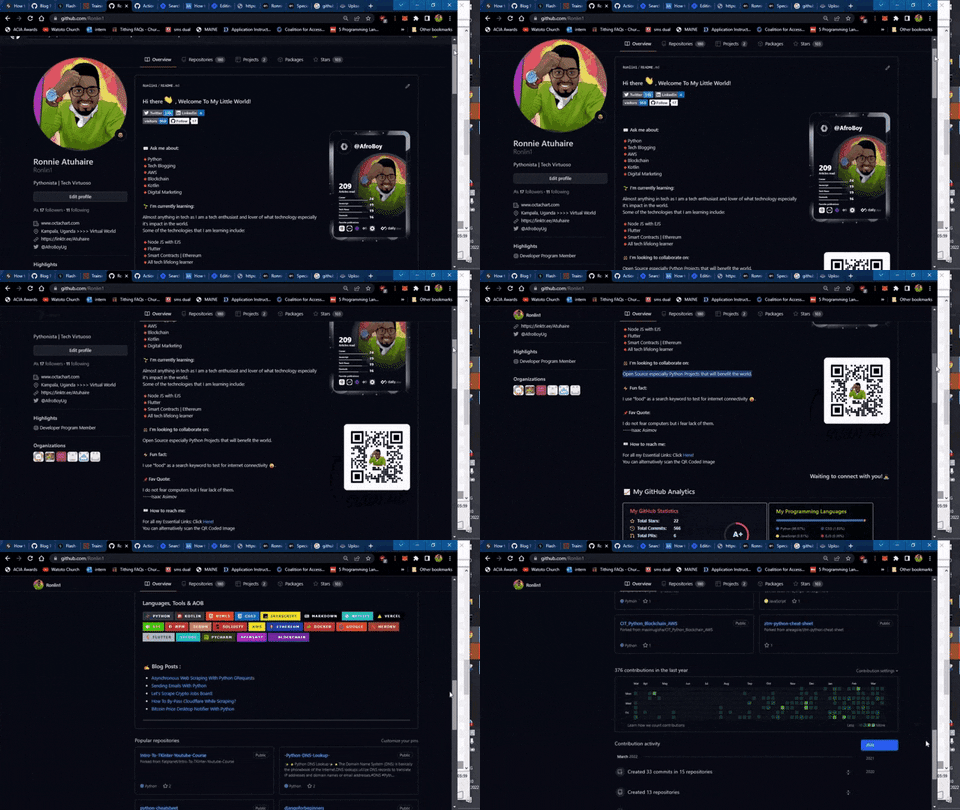
[Follow me on GitHub](https://github.com/Ronlin1) if you have enjoyed this article and you can also go in my readme file and edit it to resemble mine🤓
Watch the full video [here](https://www.youtube.com/watch?v=fLWJJvBFlu4)
#### 🔸 Conclusion
Once again, hope you learned something today from my little closet.
Please consider subscribing or following me for related content, especially about Tech, Python & General Programming.
You can show extra love by buying me a coffee to support this free content and I am also open to partnerships, technical writing roles, collaborations and Python-related training or roles.
 📢 You can also follow me on [Twitter](https://twitter.com/intent/follow?screen_name=AfroBoyUg) : ♥ ♥ Waiting for you! 🙂